Confirmation Fee Paid
Confirmation Fee Paid
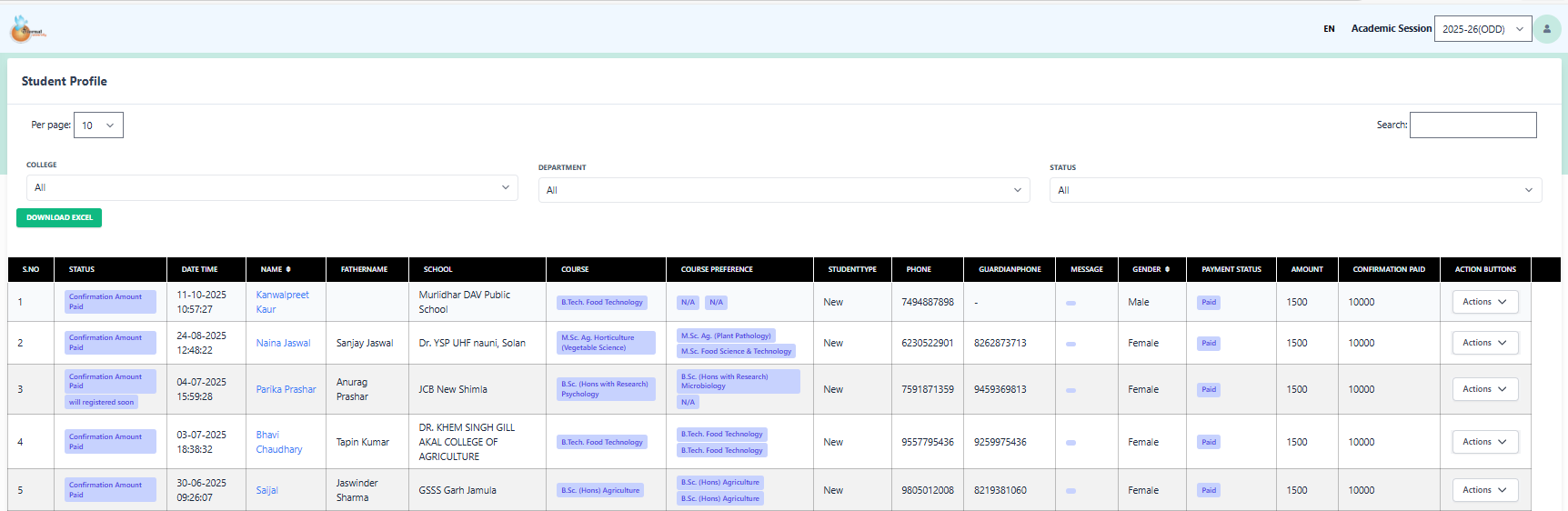
This module lists students who have paid the **Confirmation Amount** (e.g., ₹10,000) to secure their seat. Unlike simple registration, these students have shown financial commitment. Admins use this screen to verify their details and finalize the full course fee structure.
1 Student List & Confirmation Data
View all students who have cleared the confirmation dues. The table specifically highlights the Confirmation Paid amount column.
Smart Filters
- College/Dept: Filter candidates by specific streams (e.g., Nursing, Engineering).
- Status: Confirmation Amount Paid is the default status here.
- Date Range: Find payments made within a specific week or month.
Key Columns Explained
- Registration Fee: ₹ 1500 (Paid)
- Confirmation Paid: ₹ 10,000
- *This amount confirms the seat reservation before the full semester fee is applied.
2 Actions & Processing
Since the student has paid the confirmation amount, the next logical step is to Apply the Full Fee Structure or verify their documents.
1. Form
View full admission form (Personal, Academic details).
2. Apply Fee
Map the student to a fee structure (Tuition + Hostel + Etc).
3. Follow-up
Log calls regarding pending documents or next steps.
Others
3 Applying Fee Structure
Even though the student has paid ₹10,000, you must Apply the Fee to generate their full ledger. This action links the student to a specific fee plan (e.g., B.Tech Sem 1 General).
1. Student Validation
2. Select & Apply
*This will generate the pending dues in the student's ledger.